 OpenClaw
Pika MCP for ChatGPT



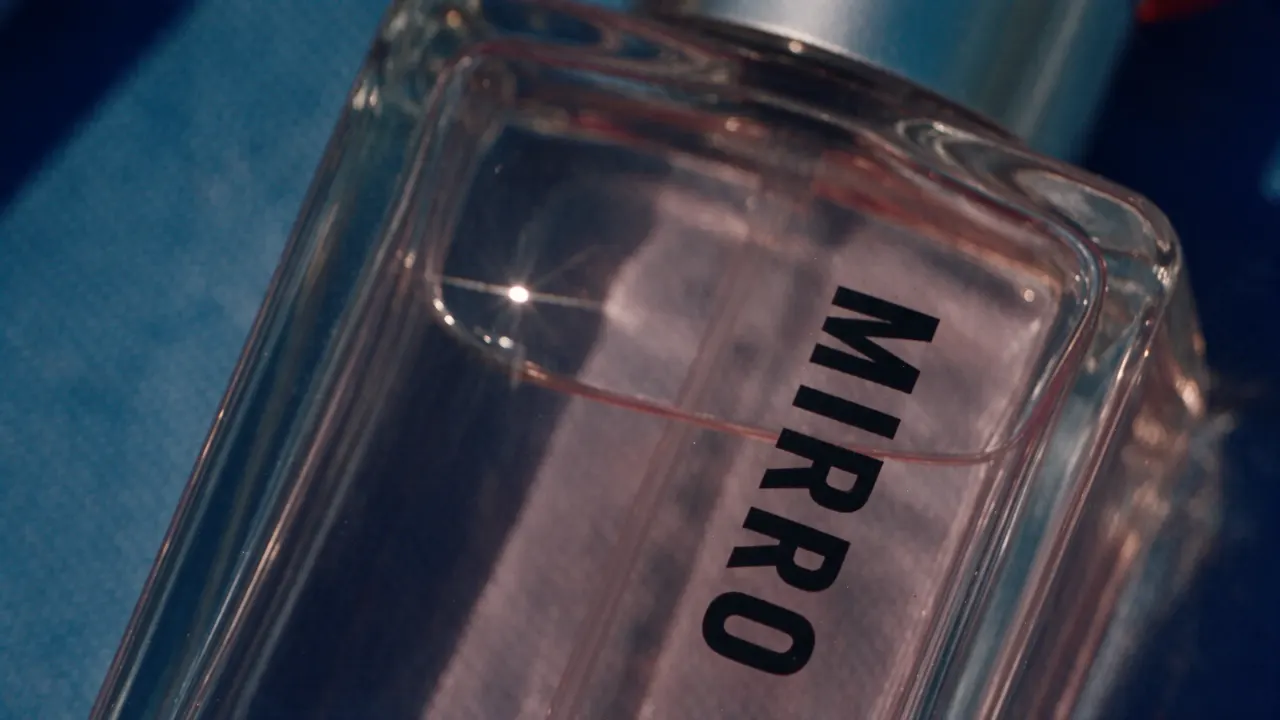
With the official Pika Plugin for ChatGPT, you have the gen media tools to support anything you're working on.
40+ Tools 60+ Models
Make anything from full creative outputs to targeted edits, across video, image and sound. Pika’s tools are tuned by creatives to ensure your outputs meet exacting standards.








Work with in-line creative UI
The Pika Plugin lets you interact with tool options, visual presets, and content generations directly in the context of your conversation.
Edit via timeline
Ask ChatGPT to bring up an editing timeline, and work together to adjust timing, re-generate clips, and add transitions, effects, and music. It has full access to your Pika library, so you can work seamlessly across surfaces.








Video, image, voice, and music from the leading labs. Name a model or let Pika pick, with no extra accounts or API keys.
- Seedance 2.5ByteDance
- Google Veo 3.1Google
- GPT Image 2.6OpenAI
- Kling 3.0Kling
- MiniMax H3MiniMax
- ElevenLabsMultilingual v2, Turbo v2.5


- Nano Banana 2.1
- Wan 3.0
- Pika 2.5
- + 34 more
Preview the apps
Give your agent every Pika creation app — video, image, and audio — from one connection.
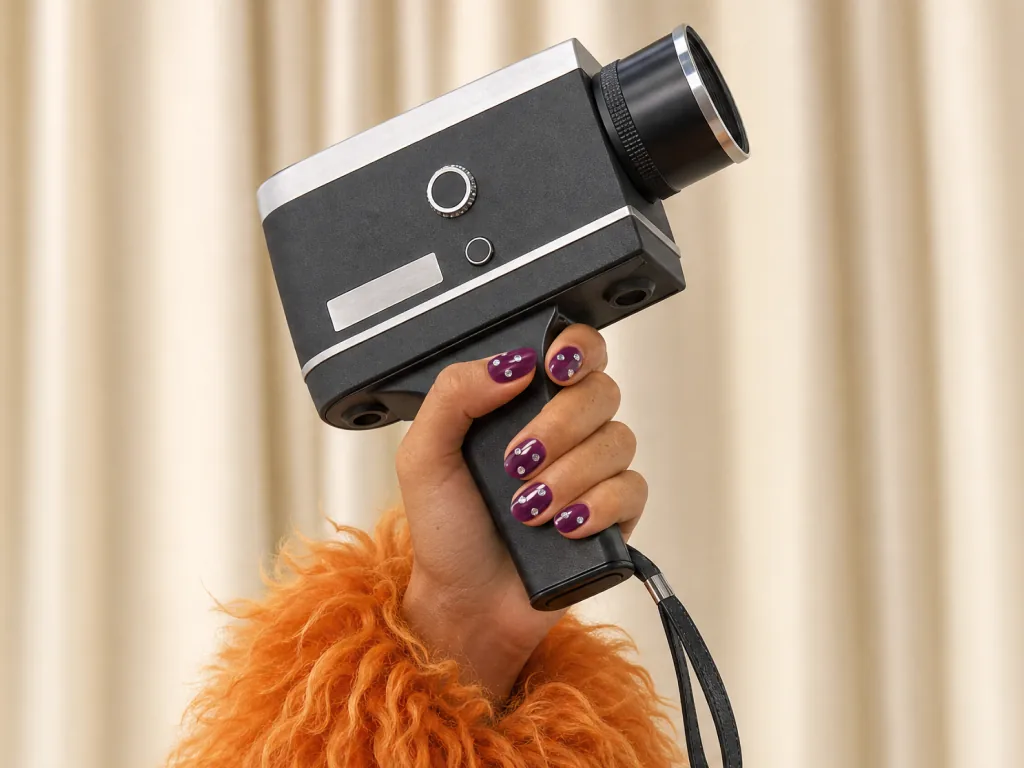 Video StudioGenerate anything from a short clip to a 30-second multi-shot masterpiece.
 Image StudioGenerate professional level imagery with maximum creative control.
 Music StudioGenerate an original music track with any lyrics, voice, or style.
 Speech StudioCreate studio-level voiceover and narrative audio from text.
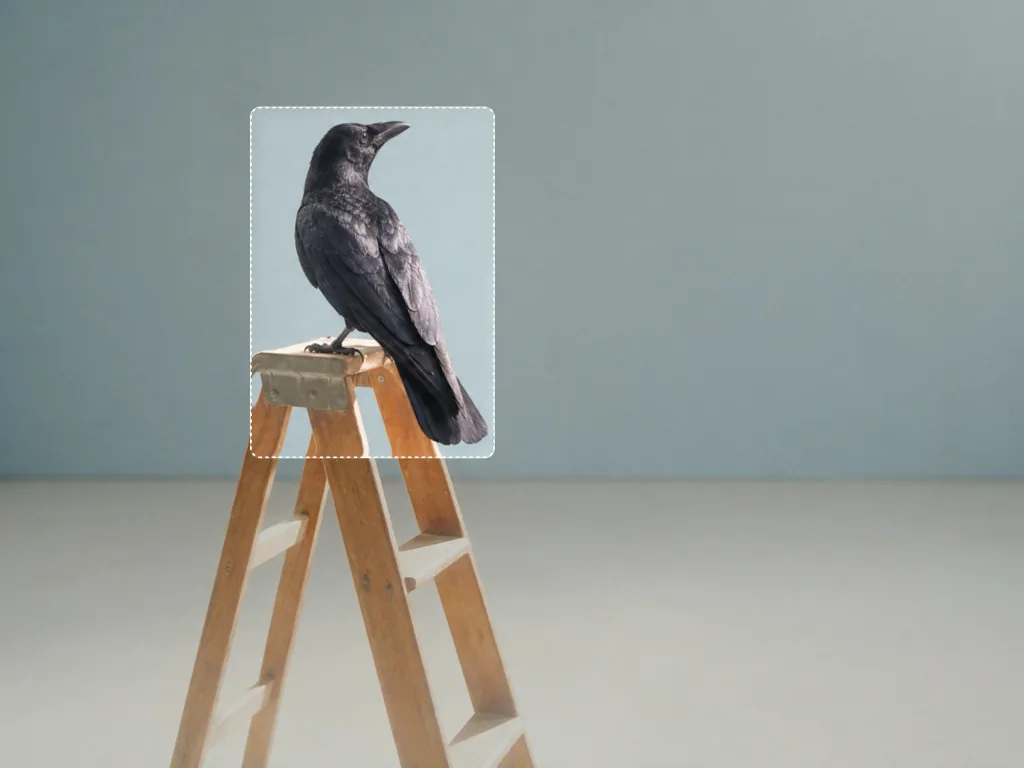 Edit ImageSwap, remove, or restyle anything in an image
 Character StudioCustomize a character who can be repeatedly used in your creations.
 Podcast VideoTurn a topic or script into a two-host video episode
 Product AdCreate a complete ad for your product from an image and a brief
 Product ShotCreate styled images of your product without a photoshoot.
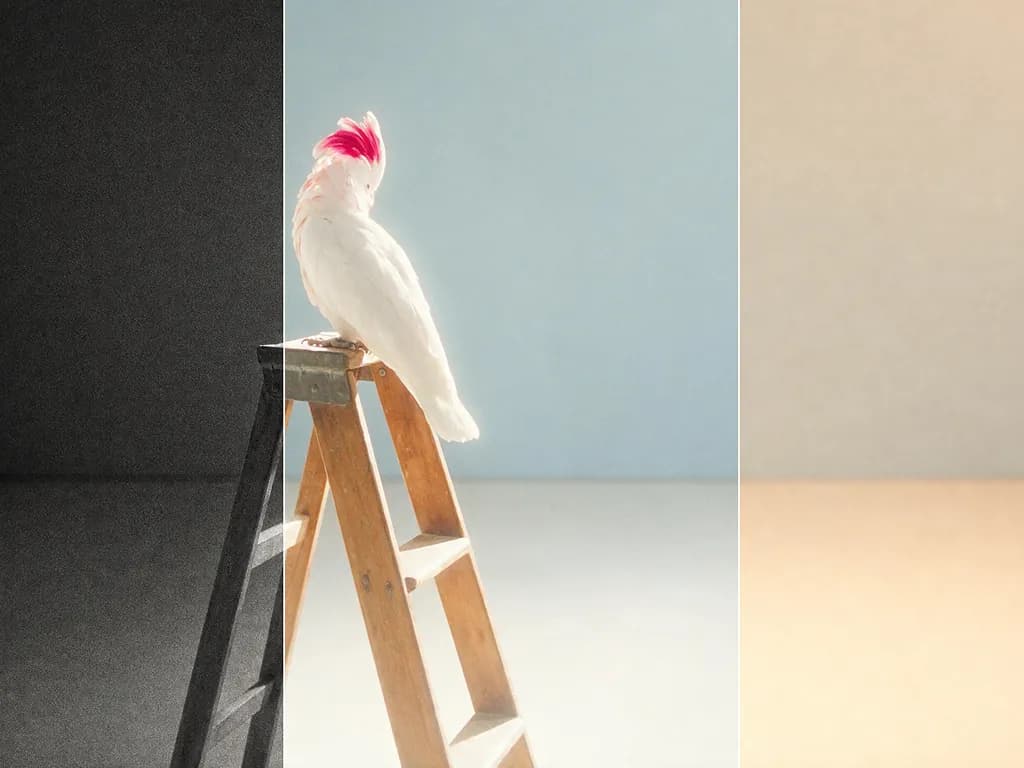 Color GradeAdjust the color, contrast, and mood of any photo or clip.
 Swap AnythingRecast anything in your clip — the performance stays as filmed.
 Camera DirectorReshoot your clip from any angle, with any camera move.
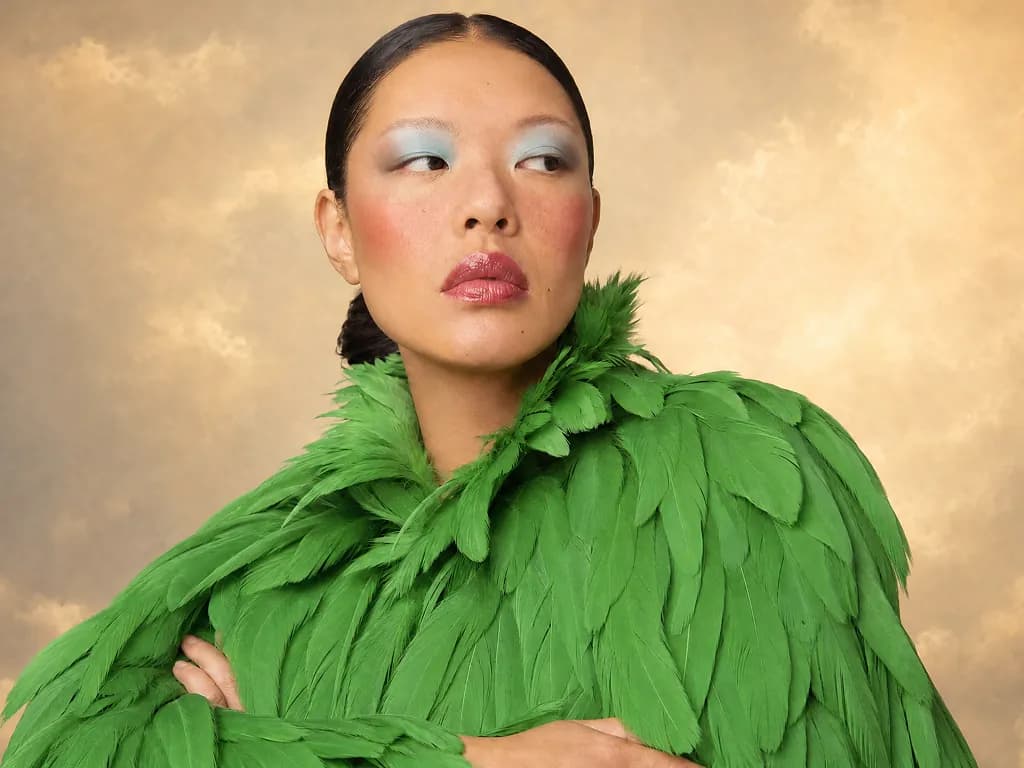 HeadshotsTurn your photo into a polished headshot
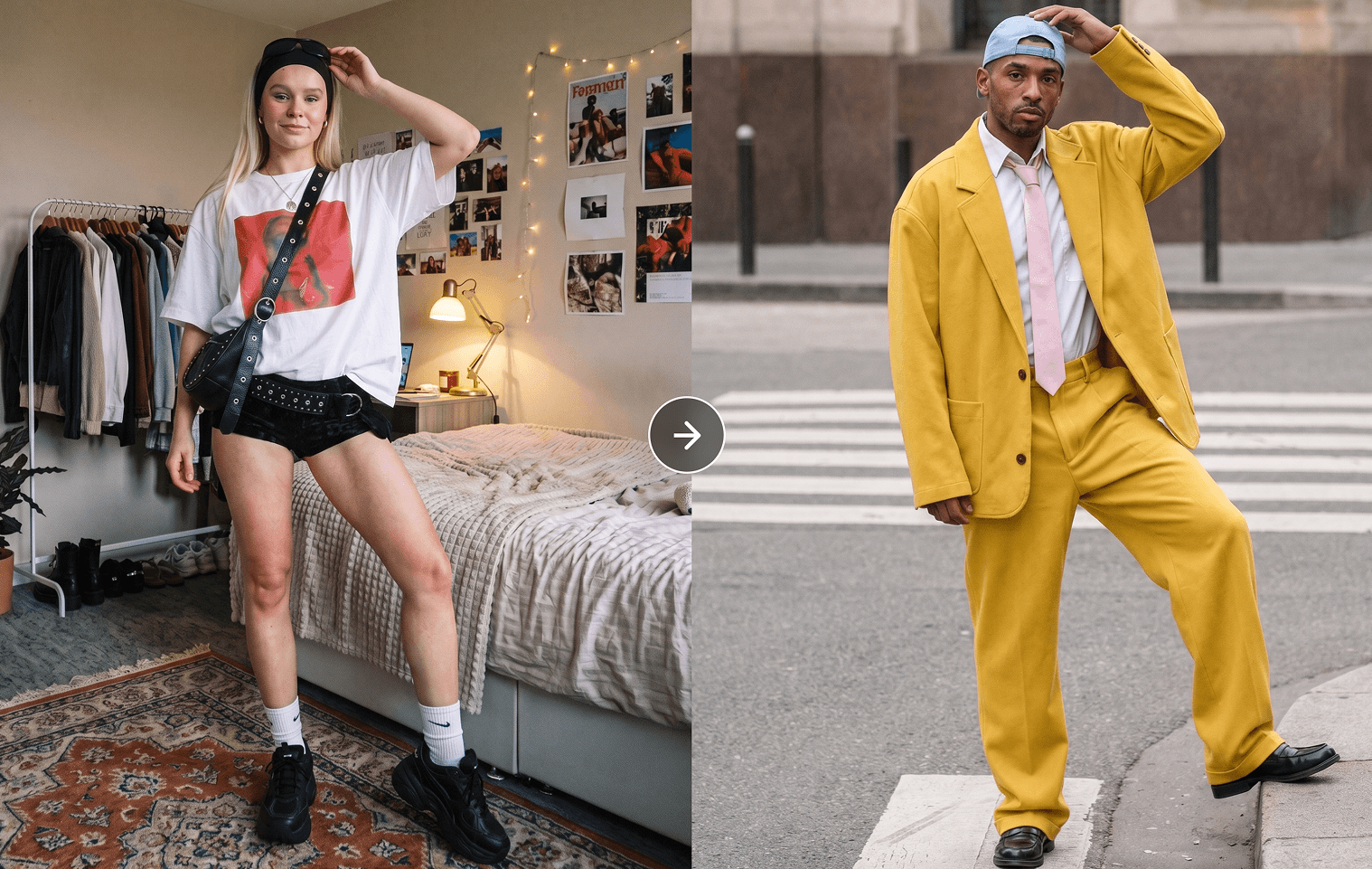 Motion TransferGive any character moves from any reference video.
 PikaffectsOne-tap viral effects — photo in, video out
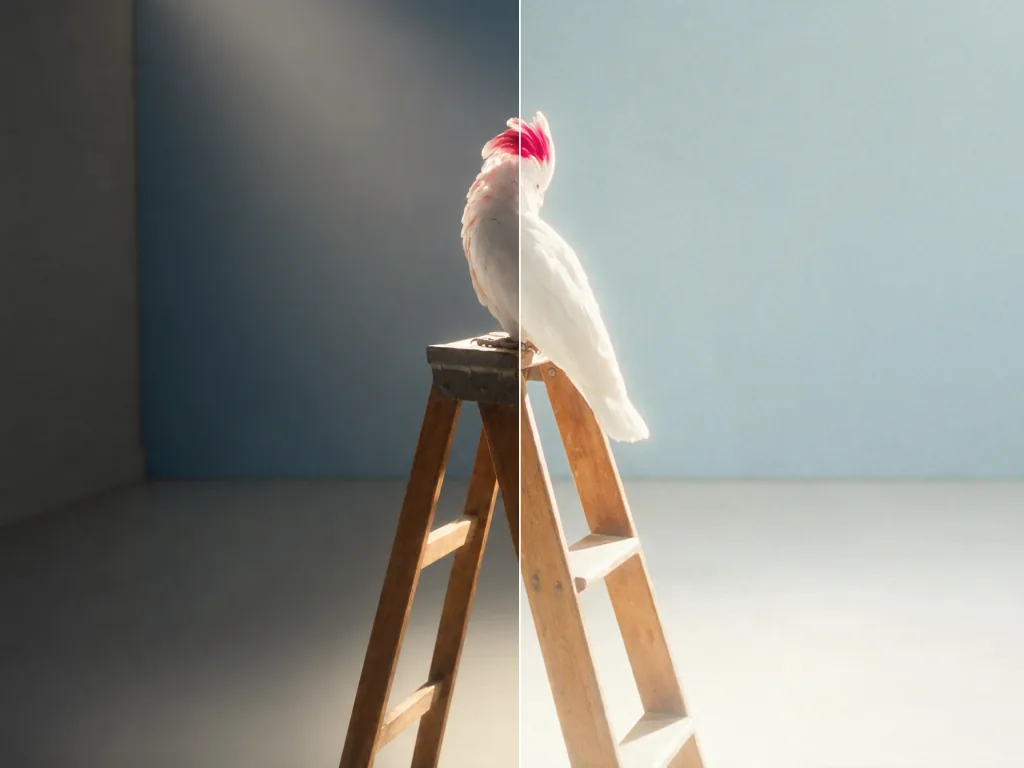 Relight MediaRelight any photo or video
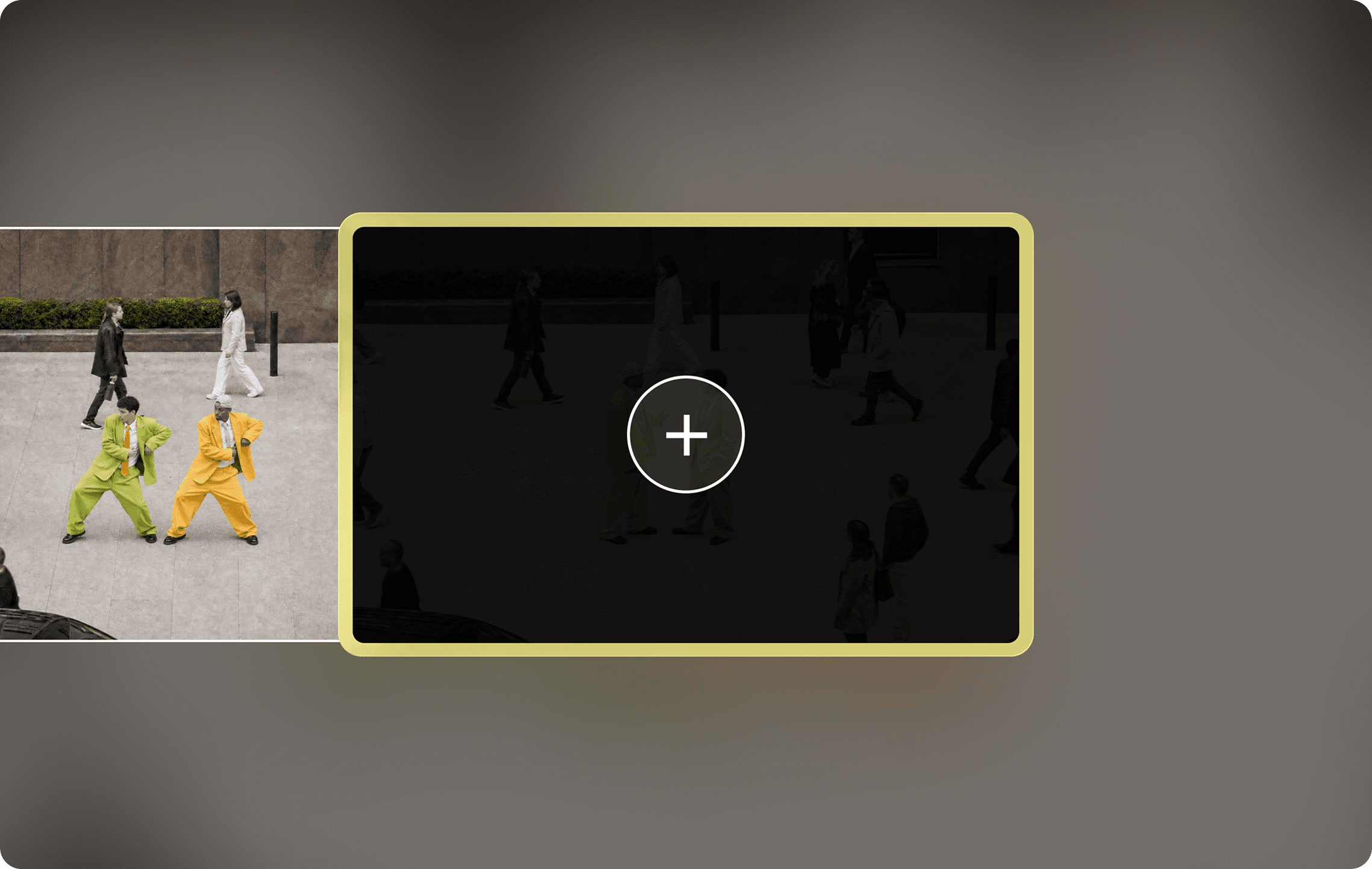 Extend VideoMake any clip longer than its original by generating extra frames
 UpscaleTake any image or clip to a higher resolution
 Seedance 2.5Available in Video Studio.
 Seedance 2.0Multi-shot video from text, image, and reference.
 Seedance 2.0 MiniAvailable in Video Studio.
 Pika H3 FlexAvailable in Video Studio.
 MiniMax H3Available in Video Studio.
 Wan 3.0Available in Video Studio.
- Grok Imagine VideoAvailable in Video Studio.
 Grok Imagine 1.5Available in Video Studio.
 Kling 4.0Available in Video Studio.
- Kling 3.0Available in Video Studio.
 Google Omni FlashAvailable in Video Studio.
- Google Veo 3.1 FastAvailable in Video Studio.
 Google Veo 3.1Google's cinematic video model, with native audio.
- FLUX 3Available in Video Studio.
 Pika 2.5Available in Video Studio.
 Seedream 5.5Available in Image Studio.
 GPT Image 2.6Available in Image Studio.
 Nano BananaGoogle's image model.
- Nano Banana EditAvailable in Image Studio.
- Nano Banana 2.1Available in Image Studio.
- Nano Banana 2 / ProAvailable in Image Studio.
 Grok ImagineAvailable in Image Studio.
- Seedream 5 LiteAvailable in Image Studio.
- Seedream 5 ProByteDance's image model.
- Seedream 4Available in Image Studio.
- Ideogram 4Available in Image Studio.
 Ideogram 4.5Available in Image Studio.
 Pika Audio — SFXAvailable in Music Studio.
 Pika Audio — MusicAvailable in Music Studio.
 Pika Audio — SoundtrackAvailable in Music Studio.
- ElevenLabs Sound EffectsAvailable in Music Studio.
 MiniMax Music 3.0Available in Music Studio.
- Lyria 2Available in Music Studio.
- Lyria 3 ProAvailable in Music Studio.
- Sonilo SFXAvailable in Music Studio.
- Sonilo v1.1Available in Music Studio.
- ByteDance Seed-Audio 1.0Available in Music Studio.
 Pika Audio — SpeechAvailable in Speech Studio.
 ElevenLabs Multilingual v2Available in Speech Studio.
 ElevenLabs Turbo v2.5Available in Speech Studio.
- ElevenLabs Eleven v4Available in Speech Studio.
- ElevenLabs Eleven v4 TurboAvailable in Speech Studio.
- MiniMax Speech 02 HDAvailable in Speech Studio.
- MiniMax Speech 02 TurboAvailable in Speech Studio.





























FAQ
A connection that lets your AI agent use Pika’s creation apps. Make and edit images, video, music, sound effects, and speech from the agent you already use.
Add Pika’s official MCP server, https://mcp.pika.art/mcp, in your agent’s connector or MCP settings, or copy the installation prompt above into the chat. It uses the Streamable HTTP transport and signs you in with your Pika account through OAuth, so there is no API key. Then ask the agent to show you the available Pika apps. The Connect your agent questions walk through each agent.
Start with an image, video, audio, or speech app, or use a guided app such as Product Ad or Short Film. Combine creation and editing apps to extend a clip, edit an image, add a soundtrack, or prepare an asset for a different format.
Browse the apps above, or choose Models to see the model choices supported by the creation tools. Your connected agent can help select the app, model, and inputs for your task.
No. Connecting authorizes the agent to access Pika. Ask it to show you the price before generating; generation uses your Pika credits and is subject to your account’s permissions and any spending preferences you have set.
- Open the Pika plugin page in ChatGPT and choose Add.
- Start a chat, ask for any Pika app, and sign in to Pika when ChatGPT asks.
- The plugin connects to Pika’s MCP server at
https://mcp.pika.art/mcp.
- In Claude on the web or Claude Desktop, open Settings, then Connectors, and choose Add custom connector.
- Name it Pika and enter
https://mcp.pika.art/mcpas the URL. - Choose Connect and sign in to your Pika account. Pika then appears in the tools menu of every new chat.
- In your terminal, run
claude mcp add --transport http pika https://mcp.pika.art/mcp. - In Claude Code, type
/mcp, choose pika and sign in to Pika in the browser. - Ask Claude Code to show the available Pika apps.
- Run
codex mcp add pika --url https://mcp.pika.art/mcp. - Run
codex mcp login pikaand approve the sign-in in the browser. - Codex can now call every Pika app.
- Run
openclaw mcp add pika --url https://mcp.pika.art/mcp --transport streamable-http --auth oauth. - Run
openclaw mcp login pikaand sign in to Pika. - Or send OpenClaw this message:
Connect Pika to this agent using the MCP server at https://mcp.pika.art/mcp. Complete sign-in, then show me the available Pika apps.
FAQ
Pika MCP
A connection that lets your AI agent use Pika’s creation apps. Make and edit images, video, music, sound effects, and speech from the agent you already use.
Add Pika’s official MCP server, https://mcp.pika.art/mcp, in your agent’s connector or MCP settings, or copy the installation prompt above into the chat. It uses the Streamable HTTP transport and signs you in with your Pika account through OAuth, so there is no API key. Then ask the agent to show you the available Pika apps. The Connect your agent questions walk through each agent.
Start with an image, video, audio, or speech app, or use a guided app such as Product Ad or Short Film. Combine creation and editing apps to extend a clip, edit an image, add a soundtrack, or prepare an asset for a different format.
Browse the apps above, or choose Models to see the model choices supported by the creation tools. Your connected agent can help select the app, model, and inputs for your task.
No. Connecting authorizes the agent to access Pika. Ask it to show you the price before generating; generation uses your Pika credits and is subject to your account’s permissions and any spending preferences you have set.
Connect your agent
- Open the Pika plugin page in ChatGPT and choose Add.
- Start a chat, ask for any Pika app, and sign in to Pika when ChatGPT asks.
- The plugin connects to Pika’s MCP server at
https://mcp.pika.art/mcp.
- In Claude on the web or Claude Desktop, open Settings, then Connectors, and choose Add custom connector.
- Name it Pika and enter
https://mcp.pika.art/mcpas the URL. - Choose Connect and sign in to your Pika account. Pika then appears in the tools menu of every new chat.
- In your terminal, run
claude mcp add --transport http pika https://mcp.pika.art/mcp. - In Claude Code, type
/mcp, choose pika and sign in to Pika in the browser. - Ask Claude Code to show the available Pika apps.
- Run
codex mcp add pika --url https://mcp.pika.art/mcp. - Run
codex mcp login pikaand approve the sign-in in the browser. - Codex can now call every Pika app.
- Run
openclaw mcp add pika --url https://mcp.pika.art/mcp --transport streamable-http --auth oauth. - Run
openclaw mcp login pikaand sign in to Pika. - Or send OpenClaw this message:
Connect Pika to this agent using the MCP server at https://mcp.pika.art/mcp. Complete sign-in, then show me the available Pika apps.
- Send Hermes this message:
Connect Pika to this agent using the MCP server at https://mcp.pika.art/mcp. Complete sign-in, then show me the available Pika apps. - Open the sign-in link Hermes returns and approve access for your Pika account.
- VS Code, Gemini CLI, Copilot CLI and custom agents connect the same way: add a remote server with the Streamable HTTP transport and the URL
https://mcp.pika.art/mcp. No API key is needed. - In a JSON config that is
{ "mcpServers": { "pika": { "url": "https://mcp.pika.art/mcp" } } }. - Sign in to Pika when the client asks, which happens the first time it calls a Pika tool.